
Local Models
Install, import, and run local AI models in Msty Studio Desktop
Local models run on your own machine, giving you more control over privacy, performance, and offline workflows.
Local Model Options at a Glance
Use this quick guide to decide where to start:
- Local AI (via Ollama): Best for fast setup, broad model availability, and day-to-day local usage.
- MLX Models (Apple Silicon): Best for Apple Silicon users who want optimized local performance with MLX-native models.
- Llama.cpp Models: Best for advanced local tuning, flexible hardware support, and low-level runtime controls.
If you are unsure, start with Local AI first.
If you are not sure which model to pick, use Model Matchmaker.
Local AI (via Ollama)
Msty Studio's Local AI backend is Ollama.
Use Ollama when you want the easiest local model workflow for install, discovery, and everyday chat use.
Go to Model Hub > Local AI Models.
You can use:
- Featured Models for curated installs
- Installed Models to manage currently installed models
- Ollama Models and Hugging Face Models to search and install
- Import GGUF Model for local GGUF files
- Import Safetensors Model for local Safetensors files
Import GGUF Model
Open Local AI Models > Import GGUF, select your file, then choose whether to:
- Symlink to the existing file location
- Copy the file into Msty Studio's models directory
Import Safetensors Model
Open Local AI Models > Import Safetensors and select your Safetensors file.
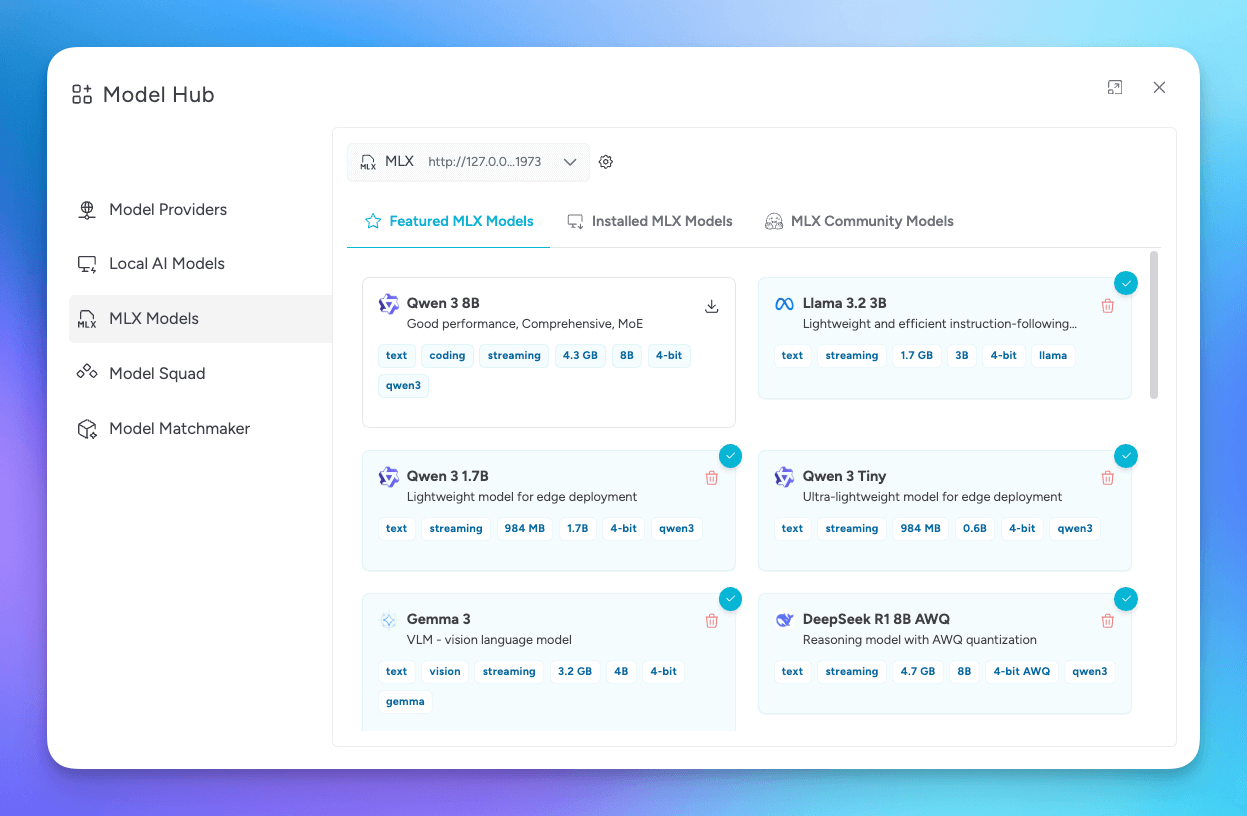
MLX Models (Apple Silicon)
MLX is Apple's machine learning framework for Apple Silicon, supported in Msty Studio Desktop.
Use MLX when you are on Apple Silicon and want strong local performance with MLX-optimized models.
In Model Hub, browse featured MLX models or search the MLX Hugging Face community.
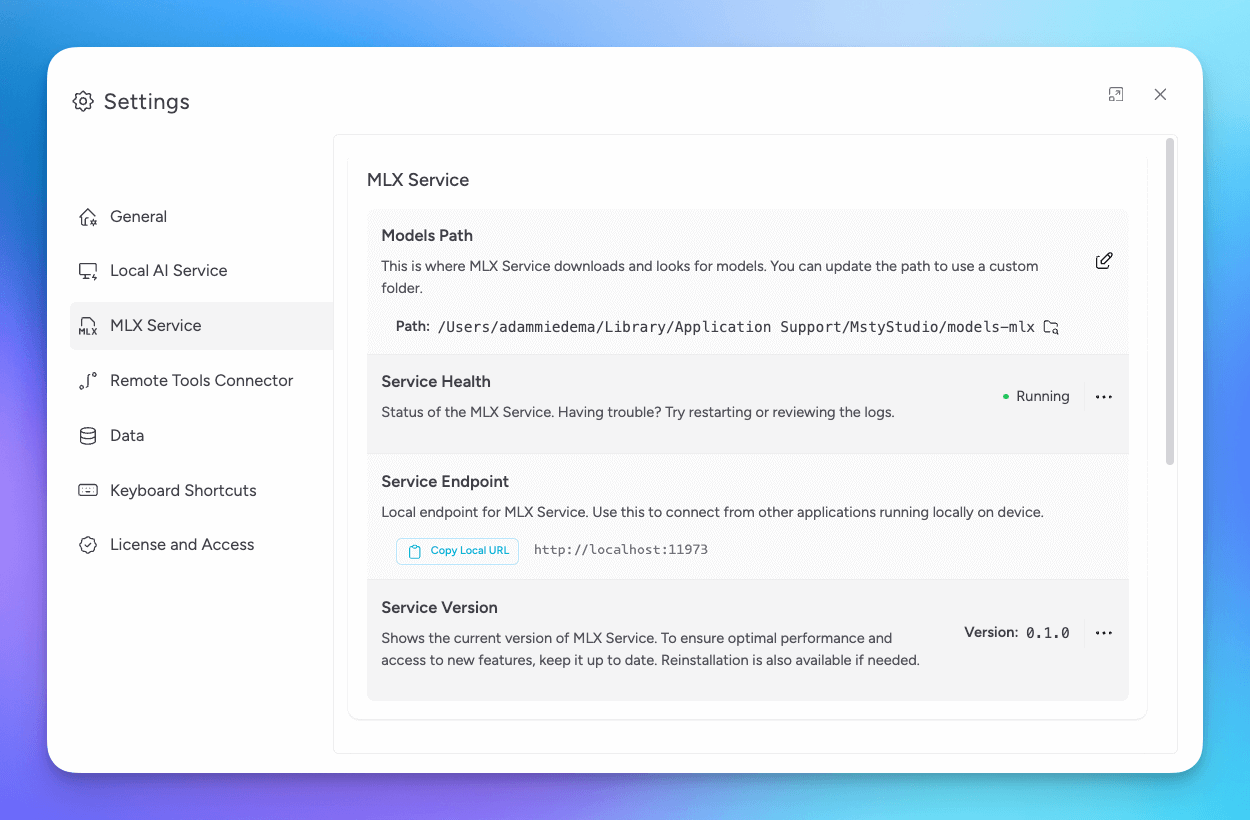
Manage MLX Service
Use Settings > MLX Service to manage service health, endpoint, version, logs, and start or stop controls.
Llama.cpp Models
Llama.cpp is a local inference engine designed for efficient performance across different hardware.
Use Llama.cpp when you want deeper inference controls and hardware-specific tuning options.
You can set it up during onboarding or from Model Hub > Llama.cpp. In Model Hub, browse featured models or search the Llama.cpp Hugging Face community to install models.
Manage Llama.cpp Service
Use Settings > Llama.cpp Service to manage health, endpoint, version, logs, and start or stop controls.
Llama.cpp GPU Support
If your system has a compatible GPU, enable acceleration from the Llama.cpp service ellipsis menu.
Llama.cpp Model Parameters
When a Llama.cpp model is selected in chat, open Model Parameters for Llama.cpp-specific settings.
Num ctx default to model max
Uses the maximum available context window, which can improve long-chat continuity at the cost of higher system usage.
Truncation Strategy
Controls how history is trimmed when context limits are reached.
- Truncate Middle: Keeps early and recent context, trims middle content
- Truncate Old: Trims oldest messages first
- None: No trimming, with higher risk of hitting context limits
General GPU Support
If your system has a compatible GPU, enable GPU support in Settings > Local AI > Service ellipsis menu for services that support acceleration.